
QUICK ANSWER
To open a 10.0.0.1 Piso WiFi customer portal, first join the hotspot identified in the operator’s instructions. Use a sign-in option if one appears. Otherwise, use the customer address supplied for that hotspot. 10.0.0.1 is only a possible address, so use it only if it has been confirmed for your network.
The customer portal is the page customers use to access the hotspot. Opening that page does not, by itself, confirm a successful payment, voucher redemption or active purchased time.
Choose your next safe step
Smart Portal Helper
Choose the situation on your screen. Open one short action plan, check what matters, then go straight to the relevant guide or prepare a message for the operator. No login or payment details needed.
SITUATIONS
Which Situation Best Matches Yours?
Pick what matches your screen. Each card opens one practical plan. If the situation changes, simply choose another.
WI-FI CONNECTIONI can see the Wi-Fi, but I cannot joinThe network is listed, but connection is not complete.
Check the connection before the portal
Review these steps in order. Checking a box tracks only your own reading, not a real network test.
0 of 3 steps reviewed.
Safety boundary: Do not guess a Wi-Fi password, reset shared equipment or change router settings.
PORTAL OPENINGI joined Wi-Fi, but no customer page appearedWi-Fi says connected, but you have no sign-in page.
Find the intended customer entry point
Review these steps in order. Checking a box tracks only your own reading, not a real network test.
0 of 3 steps reviewed.
Safety boundary: A connected Wi-Fi icon does not confirm a payment or active internet. Never trust a public search result as a replacement for the operator’s address.
PAGE IDENTITYA page opened, but I cannot tell if it is for customersThe page’s purpose is unclear—even if it has a login form.
Separate customer access from operator controls
Review these steps in order. Checking a box tracks only your own reading, not a real network test.
0 of 3 steps reviewed.
Safety boundary: Do not type a password, one-time code or voucher redemption code into a page you cannot identify. HTTPS alone is not operator authentication.
CUSTOMER PAGEI reached the customer page confirmed for this hotspotYou reached the destination identified by the operator.
Finish the portal-opening task here
Review these steps in order. Checking a box tracks only your own reading, not a real network test.
0 of 3 steps reviewed.
Safety boundary: Opening a page does not establish paid time, a successful voucher, active internet service or a verified payment.
PAID ACCESSThe portal opens, but I am unsure about paid accessThe page loads; your payment or session status is unknown.
Keep billing questions separate from portal access
Review these steps in order. Checking a box tracks only your own reading, not a real network test.
0 of 3 steps reviewed.
Safety boundary: Do not send payment references, receipts, vouchers or one-time codes to an unidentified person or into this helper.
NO SIGN-IN PROMPTI still have no sign-in option or customer pageA normal connection check did not get you to the page.
Use the documented device branch, then stop guessing
Review these steps in order. Checking a box tracks only your own reading, not a real network test.
0 of 3 steps reviewed.
Safety boundary: Do not try blanket DNS, VPN, private-MAC, cache or reset changes as a presumed fix.
SAFETY STOPI see a browser warning or operator-only controlsThe page requests something unsafe or outside a customer’s role.
Do not proceed through an uncertain or unsafe page
Review these steps in order. Checking a box tracks only your own reading, not a real network test.
0 of 3 steps reviewed.
Safety boundary: Even if a person asks you to ignore the browser warning, that request is not evidence the page is safe.
This guide follows your choices. It does not connect to, scan or verify any hotspot, payment or customer account.
Device Notes And Address Clarity
Your device and the address spelling can help you understand the next step. Neither can confirm a genuine hotspot page.
Choose Your Device
Select your device to jump directly to its detailed guidance below this helper.
Is This A Standard IPv4 Address?
Standard IPv4 uses four decimal parts (0–255), such as 10.0.0.1. Five parts like 10.0.0.0.1 are not standard IPv4. This alone never proves the correct portal.
Only format is checked locally in your browser, never reachability or trust.
Ask The Operator With The Right Words
Use only a contact method you already know belongs to the hotspot operator. These messages ask for the customer page or sign-in instructions. They do not request an administrator login.
Select a language and, if helpful, one general symptom. The message stays in your browser until you choose to copy it.
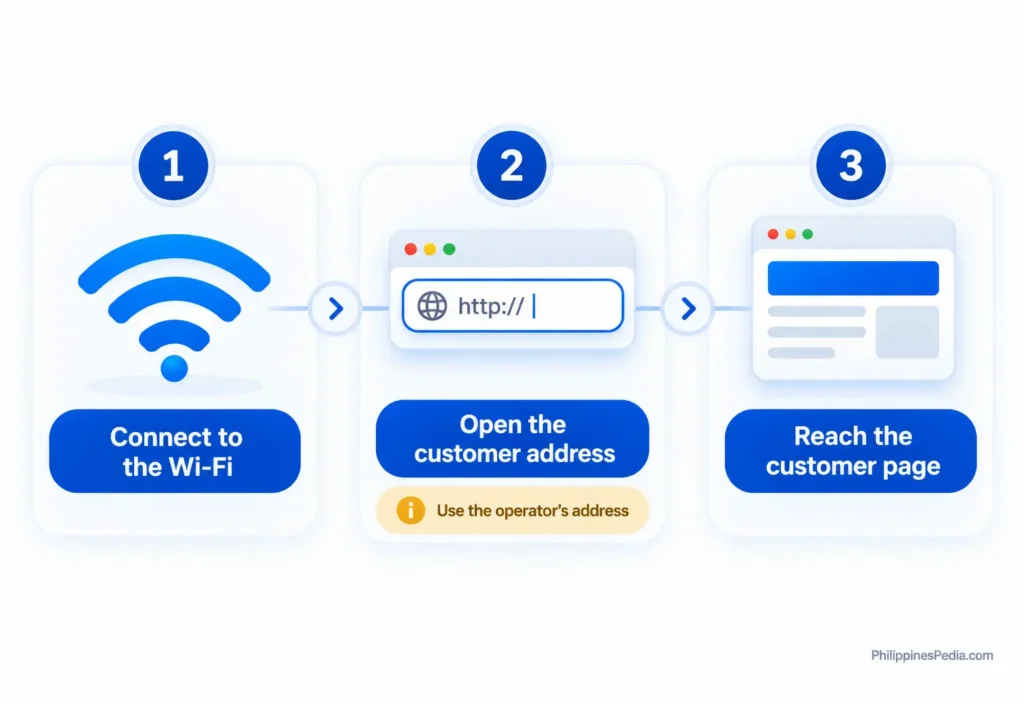
Connect To The Wi-Fi And Open The Customer Page
Open the customer address
Confirm The Network With The Operator
- Find the correct Wi-Fi name. Check the instructions posted for the hotspot or ask its operator. If two network names look similar, do not choose one based on its name alone.
- Join that network. Open the Wi-Fi settings on your phone or computer, switch Wi-Fi on and select the confirmed network. If a Wi-Fi password is required, ask the operator for it. Wait for your device to show that it has connected.
- Check that you have joined. A network appearing in the list is not the same as a completed connection. If your device is still trying to connect, get help with that step before trying to open the portal. A “connected” message alone does not confirm that the customer page or paid internet is available.
Open The Customer Address
- Look for a sign-in option. If your device offers a sign-in option, use it. If a welcome or customer page opens, skip the manual address steps and check the page in step 7. If nothing appears, continue to step 5.
- Find the customer address. Check the posted instructions for the network you joined. If they give no address or conflict with what you see, ask the operator rather than guessing an address from a search result.
- Use the browser’s address bar. This is the field that displays a webpage’s address. Type the customer address exactly as provided, including
http://orhttps://if shown. Do not add/admin, change the numbers or assume another IP will work. If the browser shows search results instead of the expected page, compare your entry with the supplied instructions. Do not choose a public “Piso WiFi login” result as a substitute. A search result for 10.0.0.1 Piso WiFi cannot confirm which customer page your hotspot uses. - Check the page’s purpose. If it offers controls for changing Wi-Fi names, rates or router settings, stop: those may be operator controls. A password field alone does not tell you whether a page is for customers or administrators. If the purpose is unclear, ask before entering details. Do not bypass a browser security or certificate warning. If no customer page opens, continue to “If the sign-in page does not appear” below.
Some hotspots restrict access to outside websites before customer sign-in. If you cannot load PhilippinesPedia while connected, use the operator’s posted instructions or ask for help in person.
10.0.0.1 Piso WiFi: Is This The Right Address For Your Hotspot?
Use 10.0.0.1 only if it is the customer address confirmed for the hotspot you joined. A correctly written address does not tell you which address that hotspot actually uses.
Four Parts, Five Parts And Different Addresses
A standard IPv4 address uses four decimal numbers separated by dots, each from 0 to 255.
| Address text | What it tells you |
|---|---|
10.0.0.1 | A standard four-part address in a range reserved for private networks. |
10.0.0.0.1 | Five numeric parts, so it is not a standard IPv4 address. Do not assume deleting a zero gives the right customer address. |
10.0.0.2 | A different standard four-part address. Do not assume it is a typo for 10.0.0.1. |
DO NOT GUESS AN ADDRESS
If an address has extra dots, missing dots or spaces between the numbers, do not guess which part to change. A corrected-looking address still may not be the one intended for your hotspot.
Here, private describes the address range. It does not mean a page is trustworthy, reachable from your connection or intended for customers. Even a correctly written address may open nothing or lead to a different page.
Your device may also list a gateway address for reaching other networks. That is not automatically the customer portal address. The gateway and portal can share an address, but the gateway label alone does not establish which page, if any, is there.
Check That You Reached The Customer Portal
Compare the page with the customer instructions for the hotspot you joined. A familiar IP address or logo is not proof that it is the right page. An HTTPS connection alone also cannot confirm that the page belongs to your hotspot.
PISO WIFI OPERATOR HELP

Customer Sign-In Or Administrator Access?
PAGE-PURPOSE CLUES · NOT AUTHENTICATION
POSSIBLE CUSTOMER PAGE
Customer page: Helps you use the hotspot or view your own access details. It may show rates or remaining time. Viewing a rate is different from changing it.
OPERATOR MANAGEMENT
Operator management: Offers controls to change network settings, service rates, customer accounts or equipment settings. These are operator tasks. If you are a customer, do not use those controls. Ask for the customer page instead. Operator guidance: Piso WiFi admin access and operator controls.
OFFICIAL PLATFORM EXAMPLE
A username-and-password form does not automatically mean a page is for administrators. AdoPiSoft, for example, documents a customer-account feature that an operator can enable. This does not mean every hotspot offers it or every customer needs an account.
WHEN YOU ARE NOT SURE
These clues help you understand the page’s purpose, but they cannot prove it is genuine. If the page’s purpose or instructions are unclear, do not enter a password, voucher code or one-time code there. Confirm the intended customer page with the operator. Do not bypass a browser security or certificate warning.
WHAT COMPLETION MEANS
If you have joined the confirmed network and opened its intended customer page, you have completed the portal-access step. That does not verify payment, voucher redemption, remaining paid time or active internet service. Do not pay again merely because the portal failed to open.
If The Sign-In Page Does Not Appear
A missing sign-in page does not, by itself, mean that the hotspot is broken, the address is wrong or a payment has failed. First check which situation matches yours:
Piso WiFi sign-in page does not appear
You Have Not Joined The Wi-Fi:
Check that you selected the network confirmed by the operator. If the connection still does not complete, use the troubleshooting handoff at the end of this section.
You Joined The Wi-Fi, But No Page Opens:
Use a sign-in option if your device offers one for that network. Otherwise, follow the operator-confirmed customer-address instructions above. Being connected to Wi-Fi does not confirm paid internet access.
A Warning Or Unexpected Page Appears:
Stop if you see a certificate or private-connection error, unexpected operator settings, an unclear destination or a request to install an unknown app or certificate. Do not bypass a security warning or change settings to force the page open.
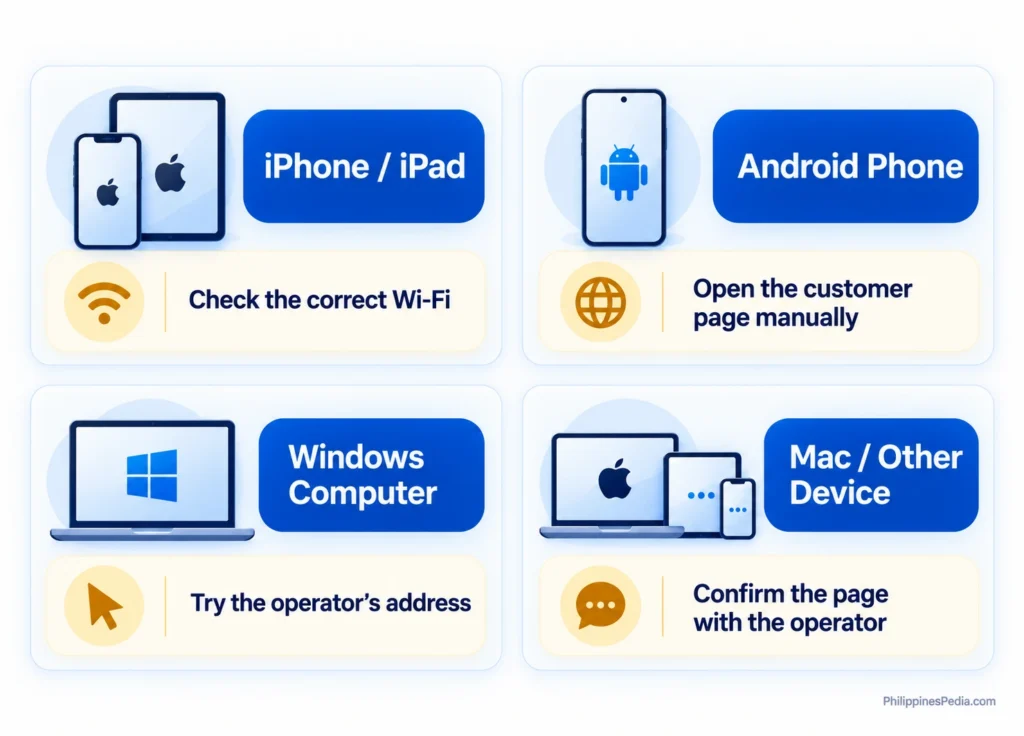
iPhone And iPad
APPLE-DOCUMENTED OPTION
If no sign-in page appears, Apple also documents tapping the information button beside the confirmed Wi-Fi network, then Join Network, if that option is available.
The meaning of Cancel depends on the screen:
INITIAL SIGN-IN SCREEN
On the initial Wi-Fi sign-in screen, Cancel disconnects your device from that network.
LATER NO-INTERNET CHOICE
In the later no-internet choice that may appear after using the information button, Cancel returns to the Welcome screen. Without Internet keeps the device joined to Wi-Fi but turns off Auto-Login.
Auto-Join controls whether the device reconnects to the network automatically; Auto-Login concerns its sign-in flow. Neither setting proves that purchased time was saved or lost. Without Internet does not mean paid internet access is active.
Android Phones
An alert that a public Wi-Fi network is available is not the same as a customer sign-in page. Check whether your phone has actually joined the confirmed network in Wi-Fi settings. Sign-in options and notifications may differ between devices. If no sign-in option appears, return to the operator-confirmed customer-address instructions above.
Windows And Mac
WINDOWS
On Windows, a “no internet” status does not, by itself, identify a payment problem, and a sign-in browser window may not open automatically. Check whether your computer has joined the confirmed Wi-Fi network, then use the customer-address instructions above if needed.
MAC
On a Mac, first confirm that you have joined the intended Wi-Fi network. If no customer page appears, use the same operator-confirmed address route. The iPhone and iPad Cancel behavior described above must not be assumed to apply to a Mac.
SAFE STOP · GET HELP
On any device, if the confirmed customer address still does not open, avoid repeated attempts or speculative device-setting changes and see Piso WiFi troubleshooting. If the network or page appears untrustworthy, you can disconnect and seek help from the operator.
How This Guide Was Checked
This guide draws on selected official standards and documentation covering IP address formats, private network ranges, Apple’s captive Wi-Fi guidance, Chrome connection security and optional AdoPiSoft customer accounts. The main document review took place on 13 October 2026; selected Apple and Android guidance was checked again on 14 October.
HOW THIS INFORMATION WAS VERIFIED
These were document checks, not hands-on hotspot tests. We did not test a customer login, device connection, payment or paid session at a Piso WiFi venue. We have not verified any particular hotspot’s operator, actual customer address, installed software or successful customer access, and the finished webpage has not been tested.
A correctly written address or an official document cannot establish which customer page belongs to a particular hotspot. The customer destination and sign-in steps still need confirmation from that hotspot’s operator.
Sources And Verification
RFC 1918: Private address ranges. Establishes that 10.0.0.1 falls within a private IPv4 range. It does not establish portal identity, safety or reachability.
RFC 3986: Address syntax. Defines the standard four-part IPv4 format used in web addresses, not how every browser handles unusual input or what a mistyped address was meant to be.
Apple: Captive Wi-Fi on iPhone and iPad. Explains Apple’s sign-in options and the different Cancel, Without Internet, Auto-Join and Auto-Login situations. These instructions are specific to iPhone and iPad.
Chrome: Connection security. Explains secure connections and security warnings. HTTPS alone does not confirm that the page belongs to your hotspot; warning labels can vary by browser and device.
AdoPiSoft: Customer accounts. Documents an optional customer-account feature. It does not show that your hotspot uses AdoPiSoft, requires an account or is displaying a customer rather than an administrator page.