
QUICK ANSWER
Piso WiFi is a pay-as-you-go internet hotspot run by a local operator in the Philippines. A customer uses their own phone or computer to join the venue’s Wi-Fi network and, when required, purchases access under that venue’s rates and rules. Many installations use a coin-operated vendo, while some platforms can support vouchers or customer accounts. Joining the Wi-Fi network, opening a customer page and having usable internet are three different things.
What Is Piso WiFi, and What Are You Paying For?
01 · WHAT YOU BUY
Piso means one Philippine peso. The name comes from the idea of buying internet access in small amounts, often at a vendo outside a neighborhood shop or sari-sari store. You bring your own phone, tablet or laptop. You are paying for access to the operator’s shared internet connection, not for the device or a personal broadband subscription.
02 · CHECK THE OFFER
The name does not guarantee a ₱1 rate. One venue may offer minutes, another may offer a data allowance, and some systems can apply both limits. Read the actual offer and its units before paying. AdoPiSoft, for example, documents separate time rates, data rates and combined limits. Those are supported options in that software, not promises about every Piso WiFi machine.
03 · YOUR OWN DEVICE
Piso WiFi also isn’t the same thing as a traditional pisonet, where a customer typically pays to use a computer terminal. A Piso WiFi customer normally uses their own device over a wireless network. Equipment and services can vary, so this is a useful distinction rather than a rule for identifying every business.
How Piso WiFi Works, From Connection to Access
Think of the vendo as one part of a larger system. Four jobs have to work together:
- Supply the internet. The operator has an internet connection. A coin cabinet cannot create an internet connection by itself.
- Offer local Wi-Fi. Network equipment broadcasts the wireless network that a customer’s device can join.
- Present the venue’s access options. Where a customer page is used, it may show rates or available ways to buy access. Coins, vouchers or other methods are usable only when that installation supports them.
- Apply the access rules. If a purchase is accepted, the system manages access according to the purchased offer and the venue’s settings, which may involve time, data or both.
IMPORTANT DISTINCTION
A successful tap, a coin drop or a visible customer page alone does not prove that a paid session was activated. The venue’s actual response matters.
Connected to Wi-Fi, but Not Online? Three Different States
Imagine you’re outside a shop with a Piso WiFi vendo. Your phone shows that it has joined the shop’s Wi-Fi. That tells you the local wireless connection exists. It doesn’t yet tell you whether the hotspot has internet service or whether your paid access is active.
| What you can actually see | What it means | Sensible next step |
|---|---|---|
| Wi-Fi connected | Your device joined the local wireless network. | If you need the customer page, use the address or instructions for this venue. |
| Customer page opens | You reached the venue’s page, if one is used. It doesn’t prove you have paid access. | Check the actual offer and your session information, if shown. |
| Websites load through the hotspot | You have usable internet at that moment. | If you bought time or data, check any limits shown for that session. |
PISO WIFI CONNECTION CHECKS
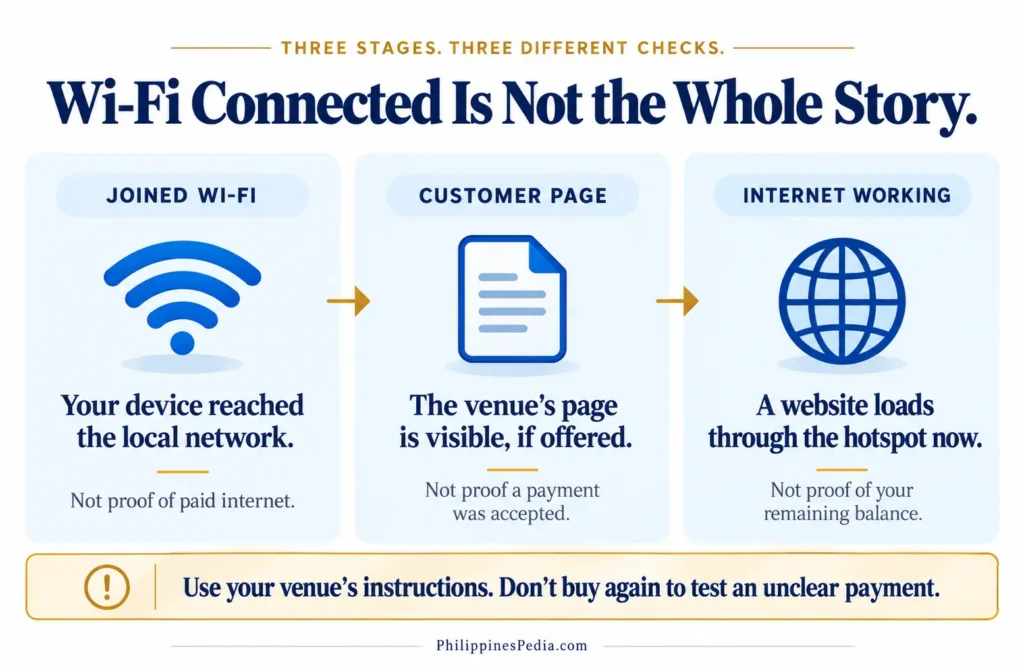
A Wi-Fi connection, a visible customer page and working internet are different observations.
These are observations, not a diagnosis. For instance, a connected phone that cannot open a website might be waiting for authorization, but a network or internet-service problem is also possible. Don’t conclude that your paid time is missing from the Wi-Fi icon alone. Official AdoPiSoft documentation even distinguishes connected users from online customers with credits within that platform; it doesn’t identify the cause on your particular machine.
Before You Insert Coins or Use a Voucher
A quick check can prevent a small problem from becoming an unnecessary second payment.
- Confirm the venue. Check the network name and the intended customer page with the operator or the venue’s posted instructions. A familiar-looking login page or a random
10.0.0.1search result is not proof that it belongs to this hotspot. - Read what you’re buying. Look for the actual price, whether the offer is measured in time or data, and any displayed expiry or usage conditions. Don’t assume a peso converts to a fixed number of minutes.
- Check an earlier attempt before paying twice. If you already inserted a coin or used a voucher and the result is unclear, note the time, any message and what your page currently shows. Ask the operator to check the attempt rather than paying again just to experiment.
PUBLIC WI-FI SAFETY
Treat a shared hotspot as a public network. Confirm that you joined the intended venue and prefer encrypted (https://) websites for sensitive activity. Do not enter administrator credentials, voucher secrets or one-time passcodes into an unfamiliar page. This is general public-Wi-Fi caution, not evidence that a particular Piso WiFi machine is unsafe.
Customer or Owner? The Same Vendo, Different Responsibilities
CUSTOMER OR OPERATOR
As a customer, your job is to choose the right venue network, understand the actual offer, use only the access method provided, and check the information shown for your session.
As an owner or authorized operator, you are responsible for the internet subscription or approved service arrangement, the hardware, the available rates, maintenance, and legitimate administrative settings. Equipment selection, profitability, licences and administrator access need their own evidence; they aren’t shortcuts for customers.
A customer-page sign-in is not automatically an owner dashboard. Some platforms have optional customer accounts as well as separate administrator permissions. AdoPiSoft documents that distinction, but it does not mean every Piso WiFi venue requires customers to create an account.
Find the Right Help for Your Situation
Start with what you can observe, not with a guessed brand, IP address or technical cause. Each route below has a different next action.
I Haven’t Joined the Venue’s Wi-Fi
First confirm the network with the operator. For connecting and identifying the correct customer address, use our Piso WiFi Customer Portal Guide (P02). Don’t follow owner login instructions just to get online.
My Wi-Fi Is Connected, but the Customer Page Won’t Open
You have a local connection, not necessarily a usable paid session. The P02 customer-portal guide owns the detailed access steps. If the intended address is unclear, ask the venue rather than trying random URLs.
I Can See a Page, but My Purchase or Internet Access Is Unclear
Read the page’s actual message and any shown time, data or status. If you already paid, don’t automatically pay again. Ask the operator about the existing attempt. If you’re using a confirmed LPB hotspot, the LPB Piso WiFi Customer Guide (P07) explains the limits of its published example.
I Already Paid and Want to Pause, Resume or Check My Time
Read Piso WiFi Pause Time (P03) for general session guidance. Pause availability, remaining time and expiry depend on the software and the venue’s rules. This overview cannot confirm that your hotspot supports Pause.
I’m Thinking of Buying or Managing a Vendo
Start with the owner-side questions: authorized internet service, equipment compatibility, installation, costs and ongoing maintenance. Those belong to our planned P05 equipment/startup and P06 authorized-admin guides, not this customer overview. Do not treat operator credentials as public instructions.
Why Two Piso WiFi Vendos May Work Differently
Two cabinets may look similar but use different network equipment, vending hardware, software versions and local settings. Even with the same software, the operator can configure different offers or optional features. That is why a tutorial, a posted example price, or a feature shown on another machine cannot tell you exactly what your venue provides.
If a page shows a balance or a status you don’t understand, record the label and the displayed value rather than converting credits into minutes or diagnosing the machine from its appearance. The right next step is the specific customer guide or an operator who can check the local record.
Sources & Verification
This is a general explanation drawn from published platform and public-Wi-Fi guidance, not a hands-on test of a particular vendo. The documentation proves that certain configurations exist, not that they are enabled at your venue. No local rate, session, payment, network address, speed or owner earning was independently measured.
PRIMARY DOCUMENTATION AND SAFETY
- AdoPiSoft: WiFi Rates. Explains configurable time, data and combined limits. Its illustrative prices are not a standard rate for the Philippines.
- AdoPiSoft: Payment Portals. Explains how that platform can configure coin-acceptor payment inputs; it does not confirm any customer’s purchase.
- AdoPiSoft: Dashboard. Distinguishes connected users from online customers in its own software, supporting the explanation of different connection states.
- AdoPiSoft: Customer Accounts. Describes optional customer-account functions; these are separate from general owner administration.
- US Federal Trade Commission: Public Wi-Fi Safety. Provides general advice on using encrypted websites and public networks; not a test of any Philippine hotspot.
No current venue, installed build, payment or Wi-Fi connection was tested. Public community discussions were used only to identify questions, not to claim typical rates, incidents or profits.