
QUICK ANSWER
To pause an existing paid Piso WiFi session, open the customer portal provided by the operator. If your session offers Pause, use it and check the response before leaving. If the pause is accepted, unused time may remain available for later, depending on that installation’s rules. Later, return to the same paid session and use its Resume control, if provided. Pause availability, limits and expiry depend on the installed system and its settings.
Pause or resume
Pause my time: follow steps 1–4 below. Resume my session: start at step 5.
Having trouble?
Pause is missing, Resume fails, or my time disappeared: use “Choose Your Problem” below. For missing time, also check “Remaining Time vs Expiry.”
Piso WiFi Pause Time: Pause, Confirm and Resume
Use the controls offered for your paid session. Their wording and availability can differ with the software, version and local settings.
- Open the correct session. Connect to the Piso WiFi network you paid to use and open the operator-provided customer portal. If the portal shows a session status, balance, remaining time or other session details, use what is visible to check that you are managing the session you paid for. You’re looking for customer session controls, not the administrator panel.
- Use Pause if it’s available. If your session offers a Pause control, select it. If the control is absent or unavailable, ask the operator whether this session permits pausing and whether a limit applies. A missing button alone doesn’t explain the cause.
- Read the response. Check any message and session status shown afterward. A tap alone doesn’t prove the request was accepted. Even if the displayed timer appears to stop, that screen by itself is not enough to prove what the system recorded. The exact confirmation depends on the installation. If the response is unclear or contradictory, note what it says and ask the operator before assuming your time is saved.
- Preserve your current session setup. Until you know what happened to the session, avoid clearing browser or site data, forgetting the network or changing privacy or Wi-Fi address settings just to troubleshoot. Note any remaining time or expiry shown. Using the same device and browser when you return is a cautious starting point, not a guarantee that the system will recognize the session.
- Reopen your session when you return. Connect to the original network and open its customer portal. Check that your existing session is recognized. If it’s missing or unfamiliar, ask the operator to locate it before making further changes.
- Use the offered Resume or continue control. Follow the control shown for that session, if one is provided. Some Piso WiFi software supports automatic behavior when the operator enables it, so don’t assume every system requires the same Resume action.
- Check that service returns. Read any session status shown and check whether you can use the internet through that Piso WiFi connection. If Resume fails or the displayed balance is unexpected, record the message and ask the operator to check the session.
IMPORTANT
Logging out, disconnecting, closing Chrome or turning off Wi-Fi should not be treated as interchangeable with Pause. Some systems offer automatic pause or resume settings, but their effect depends on the configuration. [S01]
Before leaving a session paused, check whether its remaining time also has a deadline.
Remaining Time vs Expiry
KEY POINT
Remaining time tells you how much usable time is left. Expiry or validity tells you how long that usage remains available.
These can be separate limits. A pause may preserve unused minutes while a validity deadline continues to approach. Don’t assume that pausing extends the deadline. AdoPiSoft documents expiration and pause settings separately, including options for vouchers; historical PisoFi material also lists validity and pause controls. The rule applied to your session still needs checking.
Example: 20 Minutes Remaining With a 3:00 PM Expiry
WORKED EXAMPLE
Imagine that at 2:00 PM, your session has 20 minutes remaining and is valid until 3:00 PM.
For this example, assume the pause is accepted, the balance stays unchanged while paused, and no other pause rule intervenes.
| Time | What happens in this example |
|---|---|
| 2:00 PM | The session is paused with 20 minutes remaining. |
| 2:30 PM | It still has 20 minutes available to use before the deadline. |
| 3:00 PM | The session’s usable time expires, even though those minutes were not used. |
These are invented teaching values, not a Piso WiFi default, a measured result or your live balance.
Hypothetical Piso WiFi example
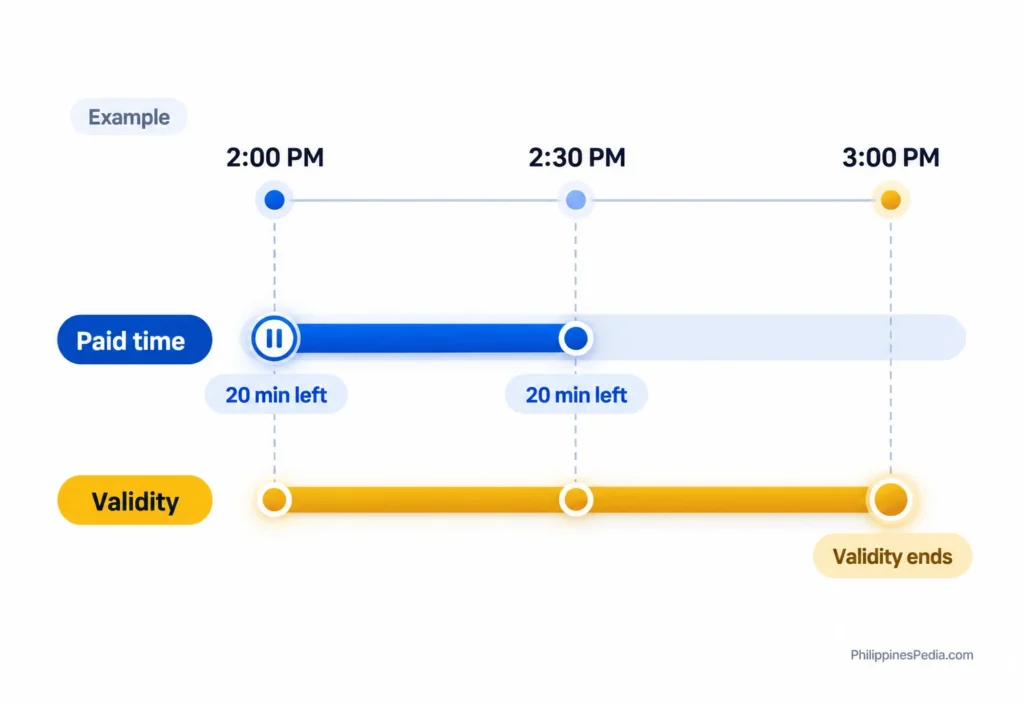
Where supported, a session may also have a pause-count limit, meaning how many pauses are allowed, or a maximum pause duration, meaning how long one pause may last. These are separate from the remaining balance and expiry. Not every installation provides every limit.
Check the session information for the rules that are actually displayed. If a deadline appears, confirm what it means and which time zone it uses. If expiry or another limit is unclear, ask the operator: “How much usable time do I have left, when does it expire, and is there a limit on pausing?”
Why Your Piso WiFi May Work Differently
Piso WiFi machines do not all use one identical system. A guide for another machine may show different controls because its software, version, operator settings or portal design may differ. On systems that support different session or voucher types, the type you purchased can also affect the rules.
A similar-looking portal does not prove that another machine uses the same software, version or settings. These documented differences help explain what needs checking:
| System | What the documentation supports | What to check with the operator |
|---|---|---|
| AdoPiSoft | Its documentation describes configurable pause, expiry and session rules. The software may support automatic handling of disconnections and reconnections, depending on configuration. Voucher options also include pause permission and expiry. | Whether your session allows pausing, which limits apply and whether any automatic behavior is enabled. The documentation does not reveal this machine’s settings. |
| LPB 2.0 | LPB advertises cloud session capability for its 2.0 offering. | Whether your session qualifies and where it can be continued. The advertised feature does not establish that saved time works on every LPB machine or on older versions. |
| PisoFi | Historical PisoFi feature material lists configurable pause, validity and automatic-behavior options. | Whether those features apply to the installed version. Older documentation should not be used as an exact guide to today’s buttons or menus. |
| Other or unknown system | Instructions for the systems above may not apply. | Use the customer controls actually shown. Ask which system and session rules apply rather than guessing from the page’s appearance. |
A router brand or internet provider does not, by itself, identify the software managing your paid time.
Editorial scene of a Piso WiFi

A customer may need the operator to confirm the settings and status of their particular paid session.
If you are the authorized operator and need to change settings, use “For Piso WiFi Owners and Operators” below.
Choose Your Problem
Choose the first problem below that matches what you can see. If the normal Pause or Resume controls are available and their response is clear, follow the earlier “Pause, Confirm and Resume” steps.
SESSION HELP
Find Your Next Step
Choose what you can see to find a safe next action. This tool cannot check or change your paid session.
IMPORTANT
While checking an already-paid session, avoid clearing browser or site data, forgetting the Wi-Fi network, changing privacy or device-address settings, or buying another session just to experiment. Keep the information currently available so the operator has something to investigate.
I Can’t Open the Customer Portal
A portal that will not open does not prove your paid time is gone.
Check that you have selected the Piso WiFi network you paid to use. Compare the address you entered with the customer address provided by the operator, if one is available. If you cannot confirm the address, ask the operator.
My Session Is Missing or Looks Unfamiliar
Check whether you are on the original network. Note what changed since the session last appeared, including any switch of device or browser, and record whatever time, expiry or status information you previously saw.
If the session still looks missing or unfamiliar, ask the operator to locate it before trying to create a replacement. An unfamiliar page alone does not establish what happened to your unused time.
My Session Says Expired or Exhausted
An expired session and a session with no remaining time are not necessarily the same thing. One concerns the deadline for use; the other concerns the amount left.
Record the exact wording and your last known remaining time, if available. If the message does not make sense, ask the operator which rule ended the session. Use the earlier “Remaining Time vs Expiry” explanation to separate those questions without guessing which limit applied.
The Pause Button Is Missing or Unavailable
A missing Pause control does not reveal the cause by itself.
Check with the operator whether your particular session allows pausing. They may need to check permission, the session’s current status, configured limits or differences in the installed version and interface. These are things to investigate, not confirmed explanations for your screen.
Record any nearby message, or take a screenshot for the operator if appropriate. Keep voucher codes, account details and payment references out of public screenshots. Do not assume the owner deliberately disabled Pause or that another button performs the same action.
I Pressed Pause but the Result Is Unclear
Treat the result as uncertain until it can be checked.
Note when you pressed Pause, the exact message or status shown, and any visible change from before the tap. If a timer is displayed, record what you observed without treating it as proof that the request succeeded or failed.
Stay with the current device and browser, and have the operator check the result. Avoid repeatedly tapping controls to force a result when you do not know what those repeated actions will do.
Resume Does Not Work or My Time Appears Missing
Record what the portal shows so the operator can check the existing session.
Include remaining time and expiry if displayed, any error or message, your last action, and whether you changed device, browser or network. Mention any connection or power interruption you noticed, without assuming it caused the problem.
Ask what happened and what options are available; recovery, transfer or a refund cannot be promised from the screen alone. The checklist and message under “What to Ask the Operator to Check” can help you prepare.
I Don’t Know Which Piso WiFi System I’m Using
You do not need to guess the platform to ask for help.
Use only the customer controls actually offered, and record any message you cannot interpret. Ask the operator which software is installed and which rule applies to your session. A familiar logo, page layout or router brand is not enough to borrow another system’s instructions.
If you also cannot tell whether the session is active, paused or expired, describe exactly what you see instead of choosing a status yourself.
Browser, Device and Address Help
Your browser or device may affect how the portal opens. If a problem began after you switched browser or device, record that change because the way an existing session is recognized can vary by installation. No single method of recognizing returning customers has been established for all Piso WiFi systems. The browser itself should not be treated as the system controlling your paid time. Using Chrome, for example, does not identify the software or rules behind the customer page.
Browser and Phone Differences
An iPhone may show a Wi-Fi sign-in window, and Android supports detection of networks that require a sign-in page. These features help explain why the entry screen can look different. They do not establish whether a Piso WiFi pause was accepted or how its billing works.
If the problem began after switching browser or device, tell the operator what changed. That is useful context, not proof of the cause.
Leave VPN, Private DNS, private Wi-Fi address and other privacy settings unchanged while checking the problem, and avoid switching to incognito just to experiment. Advice involving those changes needs evidence for the particular device and installation.
IMPORTANT
You do not need to install an app to follow the steps in this guide. Start with the customer portal provided by the operator, and avoid downloading an unverified “Piso WiFi pause” app or APK just to manage or recover a paid session.
Check the Customer Address
Prefer the address supplied by the operator. 10.0.0.1 is one possible private-network address, but it is not guaranteed to be every Piso WiFi portal.
| Address or input | What it means for your next step |
|---|---|
| 10.0.0.1 | A valid private IPv4 address. Use it when it matches the operator’s customer address. |
| 10.0.0.0.1 | Has five dotted parts. It is not standard dotted-decimal IPv4, which uses four. Check the intended address. |
| 1.0.0.1 | A valid but different address. Do not silently replace it with 10.0.0.1. |
10.0 0.1, 10.0.1 or 10001 | Spaced, shortened or collapsed inputs need checking against the supplied address, not a guessed correction. |
The four-part address distinction follows standard IPv4 syntax.
Three address examples
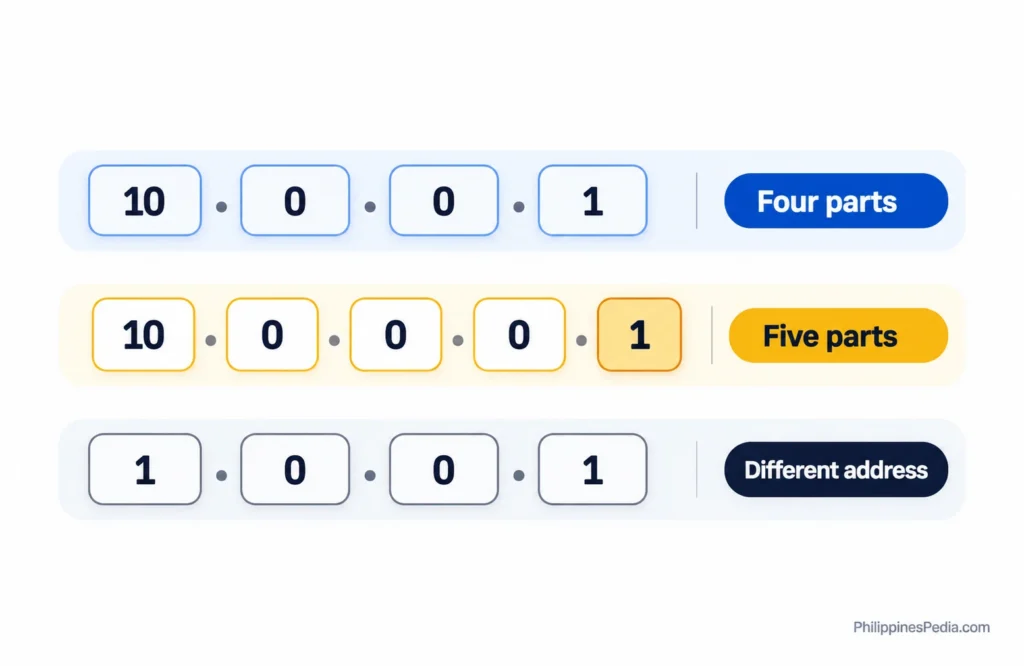
Check the address given by the operator. A valid IPv4 format does not by itself identify the customer portal.
An address labeled “gateway” in your device settings can be a clue, but it is not a guaranteed customer portal. Neither that address nor the router brand tells you whether your time is paused or which billing rules apply. If the destination is unclear, ask the operator to confirm the customer address before proceeding.
What to Ask the Operator to Check
A useful support request explains when the problem happened, what you did and what the screen showed. Gather the details you already have before sending it. Leave anything unknown blank rather than changing settings to find an answer.
Keep these notes on your own device:
- When and where: the approximate date and time, time zone if relevant, and the machine, shop or network you used.
- Your device: phone or device type, browser and operating system if relevant, and Piso WiFi software if known.
- Before the problem: the last remaining time you saw and any displayed expiry or validity.
- Your action and the result: what you pressed, the exact message or status afterward, and whether a paused status appeared.
- What changed: when the problem began and any change of device, browser or network, or any power interruption you noticed.
Before-and-after screenshots can help if you have them. They show what was visible, not necessarily why it happened. Remove sensitive details from any copy you share while keeping the relevant message or status readable.
PROTECT YOUR INFORMATION
Keep voucher codes, session tokens, account credentials, payment references, administrator passwords, unnecessary device identifiers and unredacted personal information out of public posts. Any necessary account or payment verification should be handled privately with the operator responsible for that Piso WiFi service. PhilippinesPedia does not need you to submit those details and cannot inspect your session or the operator’s records through this guide.
Questions to Ask
Choose the questions that fit your problem:
- Can you find my original session and check its current status?
- Does this session allow pausing, and which pause or validity limits apply? If an expiry is recorded, when is it?
- Is any automatic pause or resume behavior configured? Is there session activity information that could help explain what happened?
- What can be done under this machine’s policy?
The available information depends on the installed system. AdoPiSoft, for example, documents session details and activity logs in its operator view. That supports requesting a check, but it does not mean every system keeps the same records. [S03]
You do not need administrator access to request help. Any remedy depends on local policy and what the operator can establish. A screenshot alone does not guarantee restored or replacement time, a transfer or a refund.
Prepare a Message for the Operator
OPERATOR MESSAGE
Generate Operator Help Message
Enter only details you already know. Your message stays editable until you copy it.
Maikling Tulong sa Filipino
Kumonekta sa Piso WiFi na binayaran mo at buksan ang customer portal na ibinigay ng operator. Kung may Pause para sa session mo, gamitin ito at tingnan ang resulta. Kung may lumabas na mensahe o status, basahin ito. Kapag hindi malinaw ang nangyari, huwag munang ipagpalagay na na-save ang oras mo.
Sa pagbabalik, buksan muli ang session mo at gamitin ang Resume o katumbas na opsyon kung mayroon. Maaaring magkaiba ang mga patakaran sa pag-pause, expiry at mga limitasyon depende sa sistema at settings. Kung walang Pause o tila nawala ang natitirang oras, itala ang nakikita sa screen at magpatulong sa operator.
Maaari mong gamitin ang mensaheng ito. Palitan ang nasa brackets at alisin ang detalyeng hindi mo alam:
Paki-check po ang session ko. Noong [petsa/oras], [ginawa ko] at [mensahe/status] ang lumabas. Bago iyon, [natitirang oras/expiry, kung nakikita] ang nasa screen. Pinapayagan po ba ang Pause sa session na ito? May expiry o limitasyon po bang dapat kong malaman?
For Piso WiFi Owners and Operators
OPERATOR HANDOFF
If you are authorized to operate the machine, the customer steps above help explain what the user sees. Configuration changes belong in the operator guidance for your installed software and version.
How This Guide Was Checked
This guide draws on primary vendor documentation and relevant technical and standards documentation. We reviewed the questions people ask about Piso WiFi pause time, public user reports and existing guides to identify the problems this page needed to solve. Technical claims were then checked against vendor or standards documentation where available.
Competitor claims and public complaints were not treated as proof of technical causes. Product documentation was used within its stated scope, with historical material identified as such.
DOCUMENTATION-LED · NOT A LIVE SESSION TEST
This version is based on documented sources and research. We have not yet completed installation-specific hands-on testing for steps that depend on local software, version or settings. Documented capabilities do not confirm the settings or outcome on your machine. A research or review date does not mean a live session was tested on that date.
Sources & Verification
AdoPiSoft Session Settings: Supports the explanation of configurable pause, expiry and automatic session behavior.
AdoPiSoft Vouchers: Documents voucher types, expiry options and pause permission.
AdoPiSoft WiFi Devices: Supports the description of session details and activity records available within AdoPiSoft’s operator interface.
LPB official product page, Cloud Session Time: Supports the attributed statement that LPB advertises cloud session capability for its 2.0 offering.
Historical PisoFi Features: Documents pause, validity and automatic-behavior options in historical material, not a current installation walkthrough.
RFC 1918, Address Allocation for Private Internets: Establishes the private address range that includes 10.0.0.1.
RFC 3986, Uniform Resource Identifier (URI): Generic Syntax Supports the four-part IPv4 address explanation in Section 3.2.2.
Apple, Join a captive Wi-Fi network : Supports the explanation of Wi-Fi sign-in behavior, not Piso WiFi billing or pause confirmation.
Android Developers, Captive portal API support: Supports the Android portal-access context, not the behavior of an individual Piso WiFi session.